
MCP Server
MCP Server is a service that lets an AI assistant safely connect to real tools and data. An MCP Server allows AI to call real application tools in a controlled and secure way.
Overview
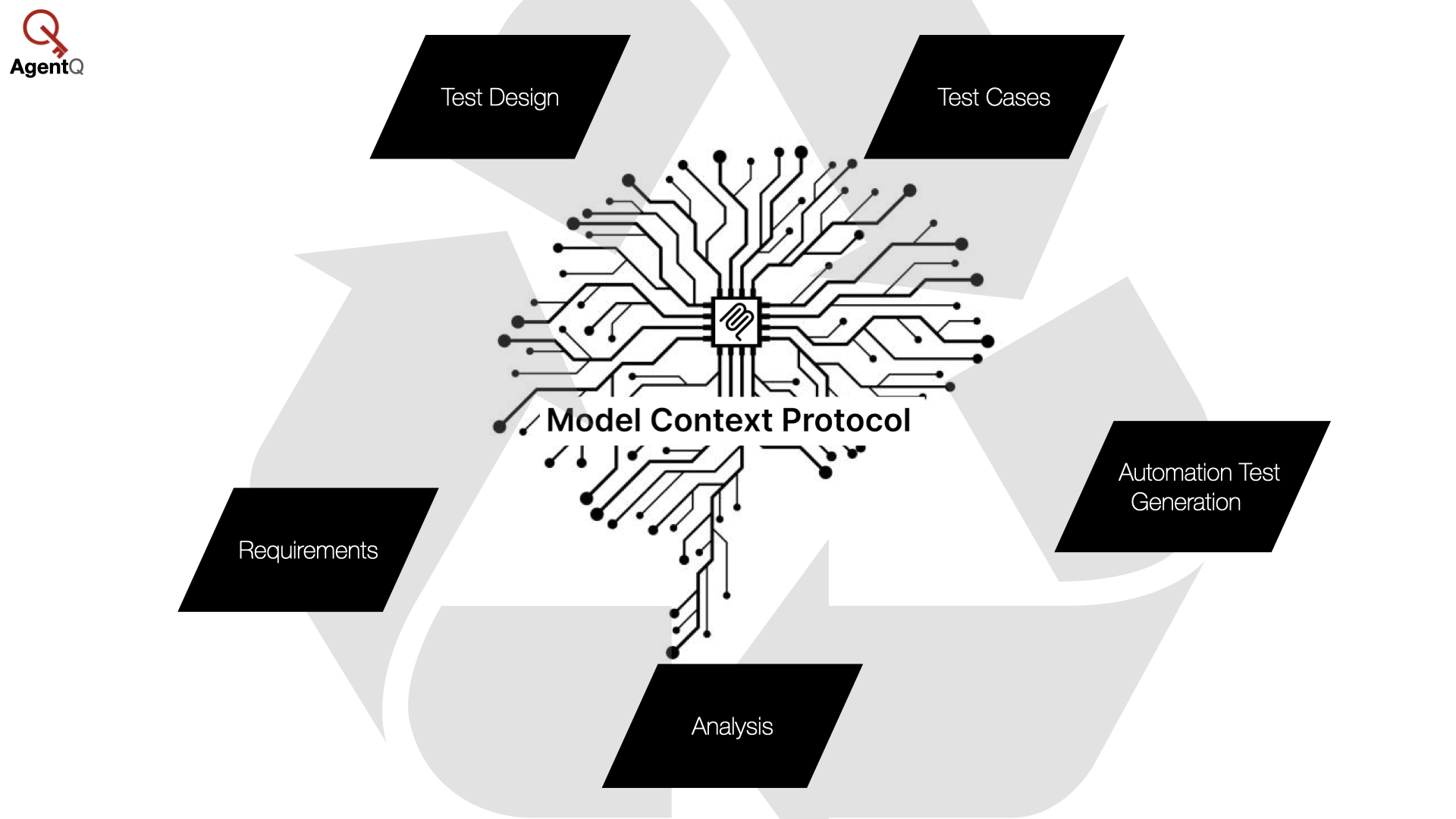
The AgentQ MCP (Model Context Protocol) Server exposes AgentQ's Test Case Management capabilities to external AI assistants and IDEs (like Cursor, Claude Desktop, and VS Code). By connecting to the AgentQ MCP Server, your AI assistant can directly interact with your projects, test cases, test runs, test results, and more—enabling it to read context, create, and update data without leaving your editor.
This implementation follows the Model Context Protocol standard and supports OAuth 2.0 for secure authentication.
The AgentQ MCP Server is also available on the Official MCP Registry.
Prerequisites
To use the AgentQ MCP Server, you need:
- AgentQ Account: You must have an active account on AgentQ (https://agentq.id/signup).
- MCP Client: An IDE or application that supports MCP (e.g., VS Code, Google Antigravity, Cursor, Claude Desktop).
Configuration
To connect your AI tool with AgentQ, point it to the AgentQ MCP endpoint:
Use https://mcp.agentq.id/mcp in any AI tool that supports configuring a remote MCP server natively.
Claude
For Claude, you can add the AgentQ MCP server using the following command:
claude mcp add --transport http agentq https://mcp.agentq.id/mcpNote: After executing the command to add the AgentQ MCP Server, your browser will automatically open to the AgentQ login page. Once you log in successfully, you can start using the AgentQ MCP Server.
Copilot-CLI
For Copilot-CLI, you can add the AgentQ MCP server using the /mcp add command and then fill in the fields as shown in the following image:
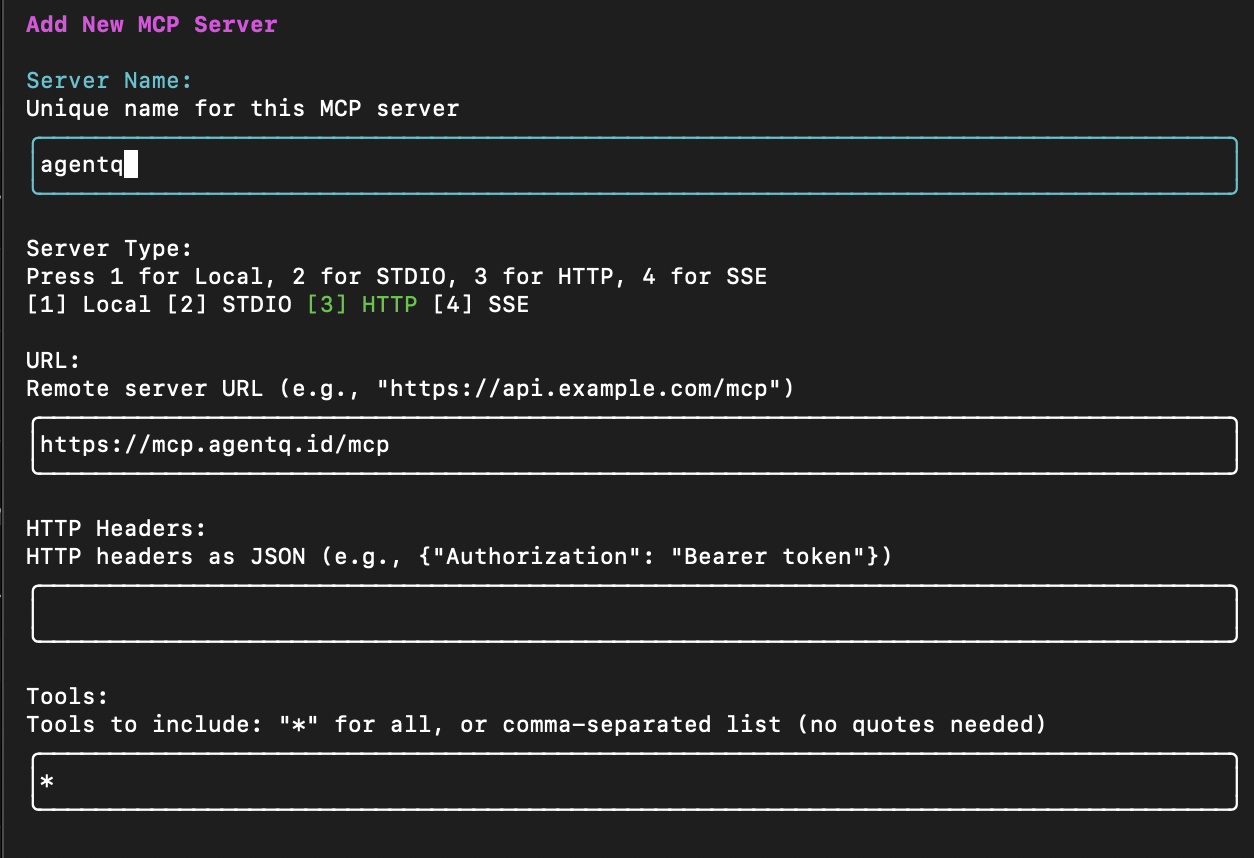
Note: Select HTTP as the Server Type. After saving the configuration, your browser will automatically open to the AgentQ login page. Once you log in successfully, you can start using the AgentQ MCP Server.
Manual Configuration
If your tool does not support remote MCP servers natively (for example, Claude Desktop), add the following JSON configuration to your MCP server setup.
{
  "servers": {
    "agentq-mcp": {
      "url": "https://mcp.agentq.id/mcp",
      "type": "http"
    }
  }
}After updating the configuration:
- Restart your AI application to detect the new MCP server connection.
- Your browser will display a prompt asking you to log in to your AgentQ account.
- In your AI tool, make sure to toggle on the
agentq-mcptool to activate it. - You're ready to use AgentQ with your AI tool!
Supported Operations
The AgentQ MCP Server exposes the following Tools that your AI assistant can invoke:
Project
| Scope | Tool | Parameters | Description |
|---|---|---|---|
| Project | list_projects | page (number, optional, default: 1)limit (number, optional, default: 20)search (string, optional) | Lists all projects accessible to the authenticated user, with pagination and optional name-based filtering. |
| Project | get_project | projectId (string, required) | Retrieves detailed information about a specific project identified by its UUID. |
Test Case
| Scope | Tool | Parameters | Description |
|---|---|---|---|
| Test Case | list_test_cases | projectId (string, required)folderId (string, optional)search (string, optional)page (number, optional)limit (number, optional) | Lists test cases within a project, with support for folder filtering, search, and pagination. |
| Test Case | get_test_case | projectId (string, required)tcId (number, required) | Retrieves full details of a single test case using its friendly numeric ID. |
| Test Case | create_test_case | projectId (string, required)title (string, required)steps (string, required)expectation (string, required)priority *(string, optional — low | medium |
Test Run
| Scope | Tool | Parameters | Description |
|---|---|---|---|
| Test Run | list_test_runs | projectId (string, required)search (string, optional)page (number, optional)limit (number, optional) | Lists all test execution runs for a project, with optional search and pagination. |
| Test Run | get_test_run | projectId (string, required)testRunId (string, required) | Retrieves detailed information and summary execution statistics for a specific test run. |
| Test Run | update_test_result | projectId (string, required)testRunId (string, required)tcId (number, required)status (string, required — passed / failed / blocked / skipped )actualResult (string, optional)notes (string, optional) | Updates the execution status and result details of a test case within a test run. |